Why Is My Computer So Slow? Common Causes and Fixes
Introduction
If your computer feels sluggish, freezes often, or takes forever to load basic apps, you are not alone. A slow computer is one of the most common frustrations for everyday users, whether you are working, gaming, or just browsing the internet. Over time, even a fast system can start to lag due to a mix of software clutter, outdated hardware, and hidden background processes.
Understanding why your computer is slow is the first step toward fixing it. Many people assume they need a new device, but in reality, simple adjustments can often restore performance. This guide breaks down the most common causes of slow computers and explains practical ways to fix them. You will learn how to identify the real issue, avoid common mistakes, and make your system run smoother without needing advanced technical skills.
Beginner Overview: How Computer Speed Works
Before diving into specific problems, it helps to understand what makes a computer fast or slow. Your system’s performance mainly depends on a few key components: the processor, memory, storage, and software efficiency.
The processor, often called the CPU, handles calculations and instructions. The faster it is, the quicker your computer can respond. Memory, or RAM, temporarily stores active tasks. If you run too many programs at once, your RAM fills up and things slow down. Storage also plays a big role. Solid State Drives are much faster than traditional hard drives, so computers with SSDs feel significantly quicker.
Software matters just as much as hardware. Background programs, outdated systems, and unnecessary files can all reduce performance. Even something as simple as too many startup apps can affect speed.
Think of your computer like a workspace. If it is clean and organized, you can work quickly. If it is cluttered and overloaded, everything takes longer.
Important: Slow performance is usually caused by a combination of small issues rather than one major problem.
Too Many Startup Programs

Make it stand out
Whatever it is, the way you tell your story online can make all the difference.
When you turn on your computer, many programs may automatically launch in the background. These are called startup programs, and while some are necessary, many are not.
Over time, apps like messaging tools, update managers, and media players add themselves to startup without you noticing. Each one consumes memory and processing power right from the beginning. This leads to slower boot times and reduced performance throughout the day.
The problem becomes worse on older systems with limited RAM. Even a few extra programs can make a noticeable difference. You might not see these apps open, but they are still running behind the scenes.
Managing startup programs is one of the easiest ways to improve speed without upgrading hardware. Most operating systems provide a simple list where you can disable unnecessary items.
How to Fix It:
Open your system’s startup settings
Disable non-essential apps
Keep only security and critical system tools enabled
Not Enough RAM
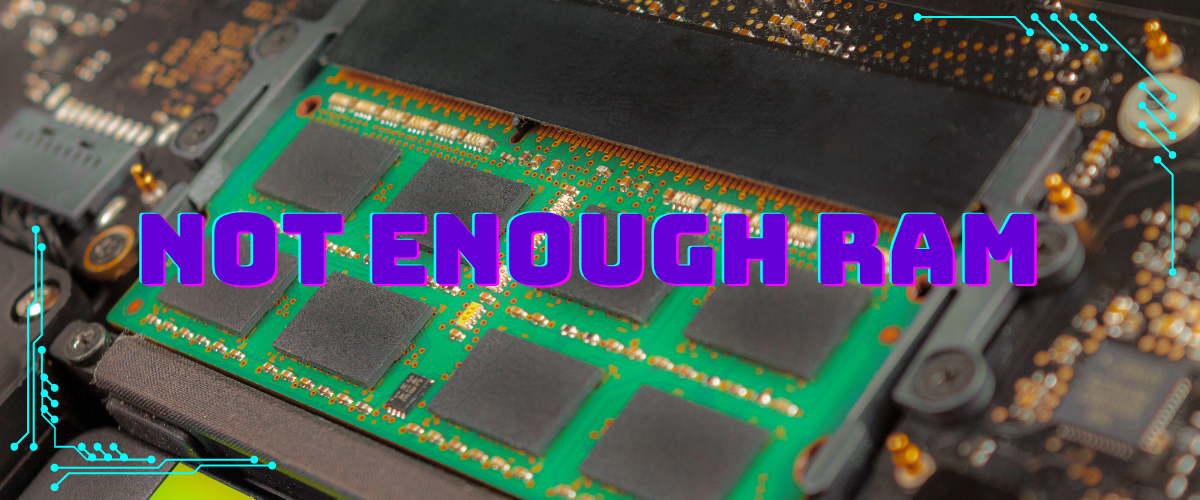
RAM is essential for multitasking. If your computer struggles when you have multiple tabs or apps open, you may not have enough memory.
When RAM fills up, your system starts using storage as temporary memory. This process is much slower and leads to lag, freezing, and delayed responses. You might notice this when switching between applications or opening large files.
Modern software uses more RAM than older programs, so a computer that worked fine a few years ago may now feel slow. For basic tasks like browsing and document editing, 8 GB of RAM is usually the minimum for smooth performance.
Upgrading RAM can make a dramatic difference, especially if your system currently has very little.
Example:
A student working with 15 browser tabs and a video call may experience lag on 4 GB of RAM, but the same setup runs smoothly with 8 or 16 GB.
Outdated or Slow Storage Drive
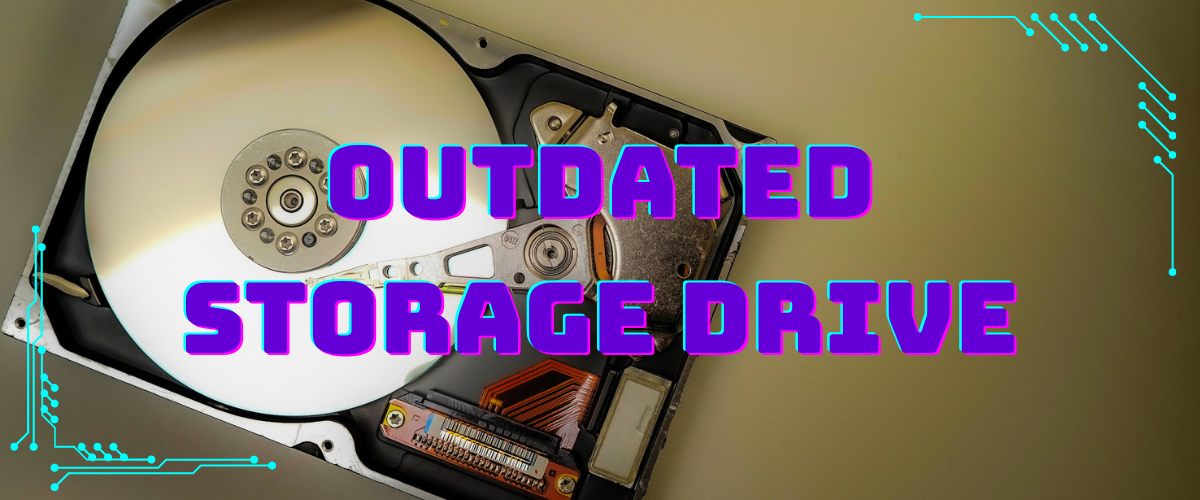
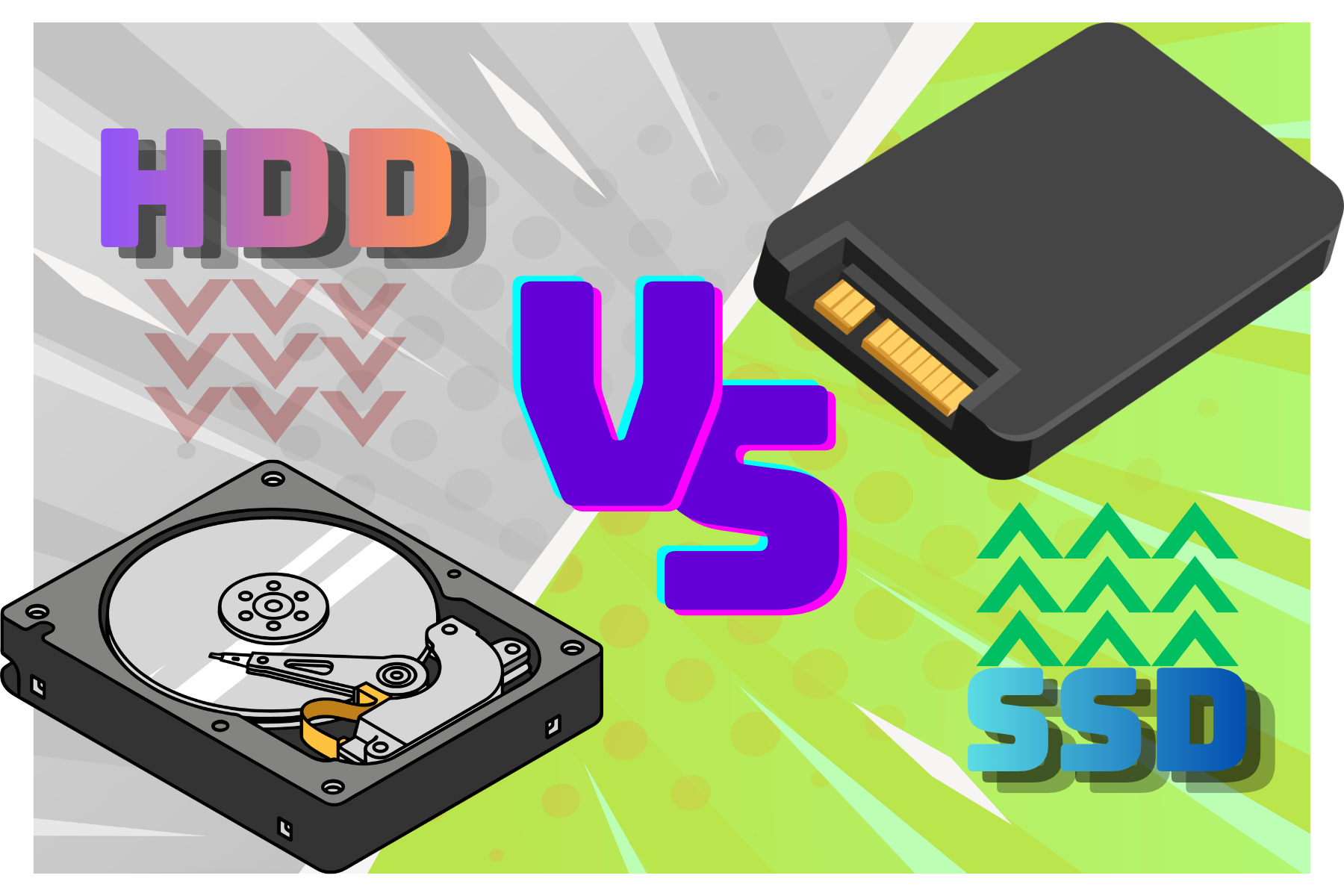
Storage type has a huge impact on speed. Computers with traditional hard drives often feel slow compared to those with solid state drives.
Hard drives rely on spinning disks, which take time to read and write data. SSDs, on the other hand, use flash memory and are much faster. This affects everything from boot time to opening applications.
If your computer takes a long time to start or load files, your storage drive could be the main bottleneck. Even a powerful processor cannot compensate for slow storage.
Upgrading to an SSD is one of the most effective improvements you can make. It often makes an older computer feel like new.
Quick Tips:
Check if your system uses an HDD or SSD
Consider upgrading to an SSD if possible
Keep at least 20 percent of storage free
Background Processes and Hidden Apps
Make it stand out
Whatever it is, the way you tell your story online can make all the difference.
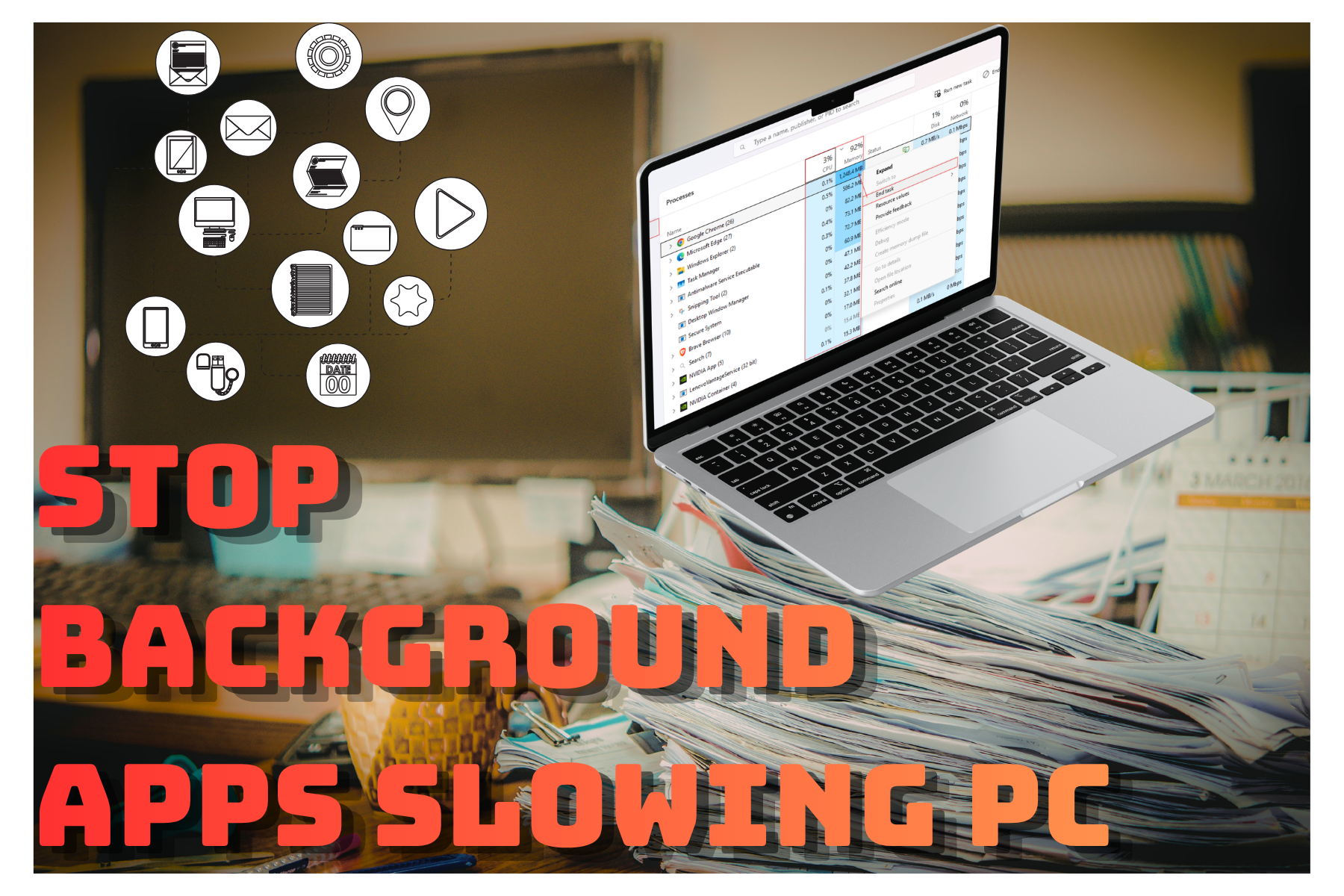
Many programs run in the background without your awareness. These include software updates, syncing services, and system utilities.
While some background processes are necessary, others are not. Too many running at once can consume CPU and RAM, slowing down everything else. This is especially noticeable when your computer is idle but still feels sluggish.
Task managers allow you to see what is running in real time. You can identify which apps are using the most resources and decide whether they are needed.
Being mindful of background activity helps you maintain long-term performance.
Care Tip:
Regularly check your task manager and close apps you are not actively using to free up resources.
Malware and Unwanted Software

Malware, spyware, and unwanted programs can significantly slow down your computer. These programs often run silently, using system resources for harmful or unnecessary tasks.
Signs of malware include sudden slowdowns, unexpected pop-ups, and programs you do not remember installing. Even legitimate software can behave poorly if bundled with unnecessary extras.
Running regular security scans is essential. Many modern antivirus tools can detect and remove threats before they cause serious damage.
Ignoring this issue can lead to both performance problems and security risks.
Important:
Never download software from untrusted sources, as it often includes hidden programs that slow your system.
Outdated Software and Operating System

Make it stand out
Whatever it is, the way you tell your story online can make all the difference.
Using outdated software can cause compatibility issues and reduced efficiency. Developers frequently release updates to improve performance, fix bugs, and enhance security.
If your operating system or apps are outdated, they may not run efficiently with newer technologies. This can lead to slower load times and unexpected errors.
Updating your system ensures you benefit from performance improvements and optimizations. While updates may take time to install, they are usually worth it.
However, very old computers may struggle with newer updates, so balance is important.
How to Fix It:
Check for system updates regularly
Update key applications
Restart your computer after updates
Overheating and Hardware Stress
Heat can slow your computer more than you might expect. When internal components get too hot, the system reduces performance to prevent damage. This is called thermal throttling.
Dust buildup, poor ventilation, or aging cooling systems can all cause overheating. Laptops are especially prone to this because of limited airflow.
You might notice your computer slowing down during long sessions or when running demanding programs. Fans may also become louder as the system tries to cool itself.
Keeping your device cool helps maintain consistent performance.
Quick Tips:
Clean dust from vents and fans
Use your computer on a hard, flat surface
Avoid blocking airflow
Conclusion
A slow computer is rarely caused by just one issue. More often, it is the result of small problems adding up over time, such as too many startup programs, limited RAM, or outdated software. The good news is that most of these issues are fixable with simple steps.
Start by identifying the main cause, then apply targeted fixes like reducing startup apps, upgrading hardware, or scanning for malware. Regular maintenance can prevent slowdowns and extend the life of your device.
With a bit of attention and the right approach, you can turn a frustratingly slow computer into a smooth and reliable tool again.
Art credit
@afloimages @aimenabbas @alexlmx @azza-studios @creasheeps @djongcelebes @gettyimages @gettysignature @goodstudio @icons8 @inkubators @laudiseno @little-edu-arts @mlqmcstr @peopleimages-yuriarcurs @szeantive @vvadyab