SSD vs HDD: Upgrade Storage to Speed Up Your PC
Introduction
If your computer takes forever to boot, open files, or launch applications, your storage drive might be the hidden bottleneck. Many people focus on RAM or the processor when troubleshooting performance, but storage is often the real reason a system feels painfully slow.
Traditional hard drives (HDDs) rely on spinning disks and mechanical parts, which makes them significantly slower than modern solid-state drives (SSDs). Even a powerful computer can feel outdated if it’s running on an HDD.
The good news? Upgrading your storage is one of the most impactful improvements you can make. In this guide, you’ll learn the differences between HDDs and SSDs, how to identify what your system uses, and how to upgrade effectively. If your computer feels sluggish, this might be the single change that makes it feel brand new.
HDD vs SSD: What’s the Difference?
The key difference comes down to how data is stored and accessed.
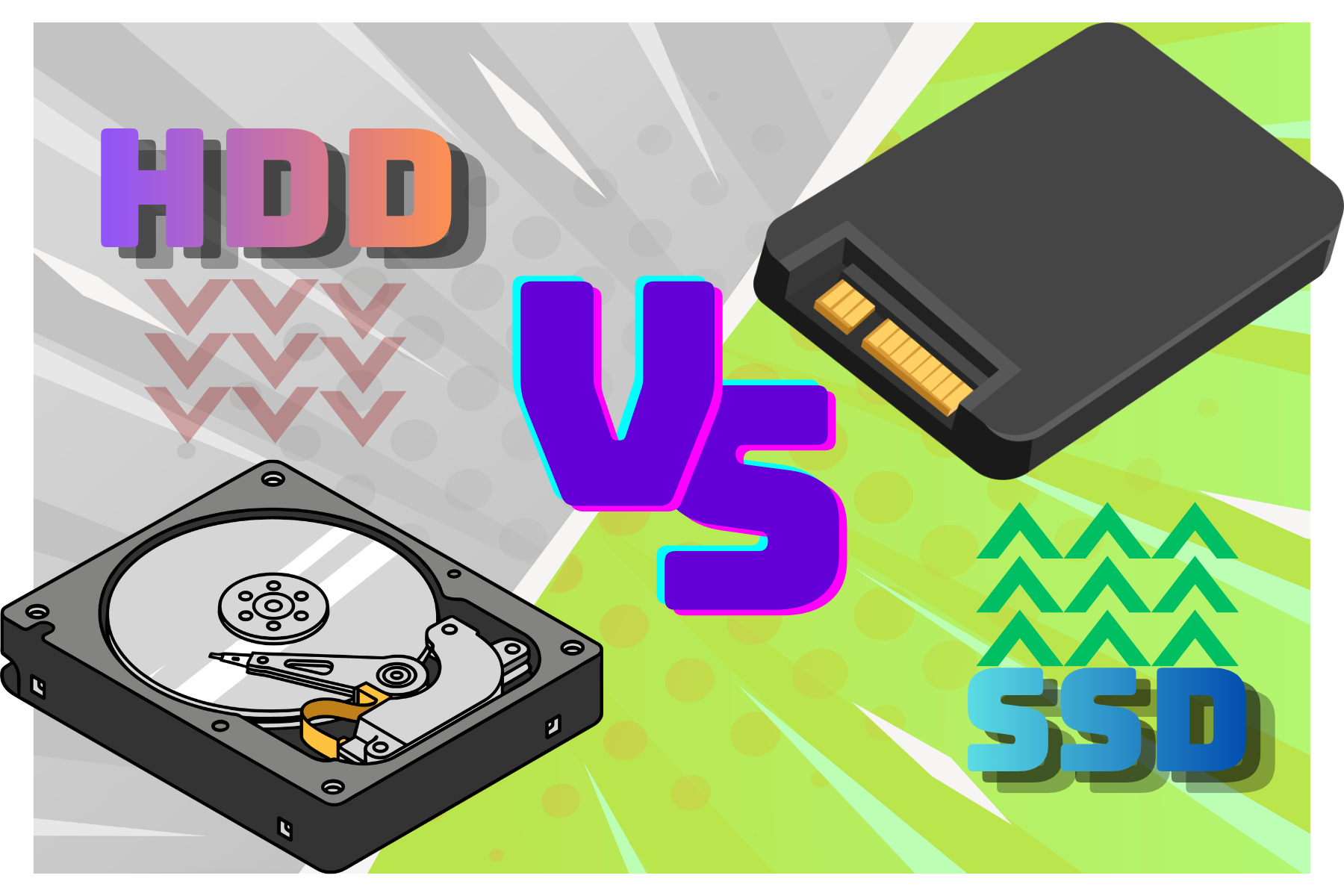
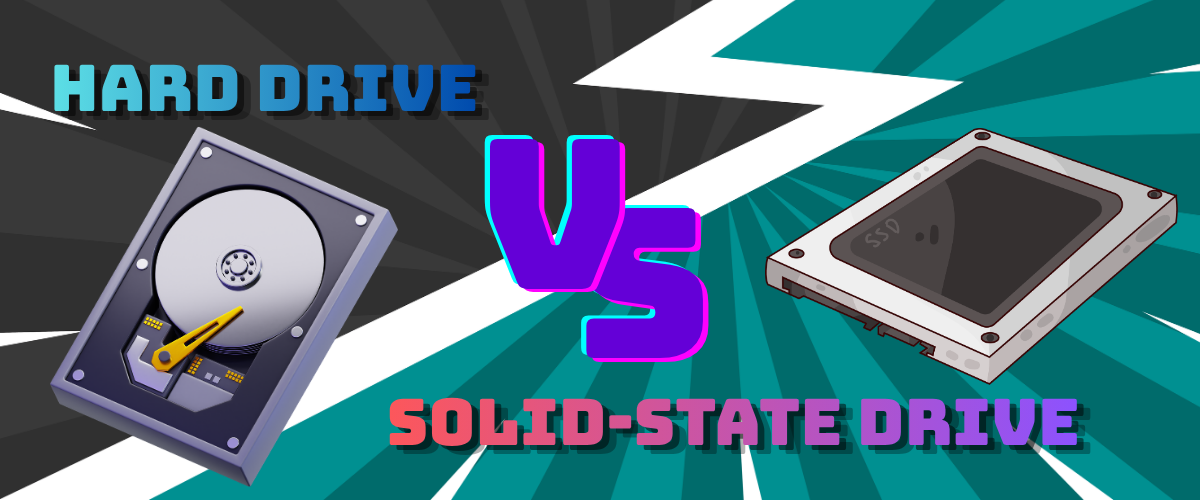
HDD (Hard Disk Drive): Uses spinning disks and a mechanical arm
SSD (Solid State Drive): Uses flash memory with no moving parts
Because SSDs don’t rely on physical movement, they can read and write data much faster.
Real-World Impact
Boot time: 1–2 minutes (HDD) vs 10–20 seconds (SSD)
App loading: Noticeably faster on SSD
File transfers: Significantly quicker
This isn’t a small upgrade—it’s a game changer.
Signs Your Storage Drive Is Slowing You Down
Long boot times
Programs taking forever to open
Frequent freezing when loading files
Constant disk usage near 100%
If your system “hangs” during simple tasks, your drive is likely struggling.
Step-by-Step: How to Check Your Drive Type
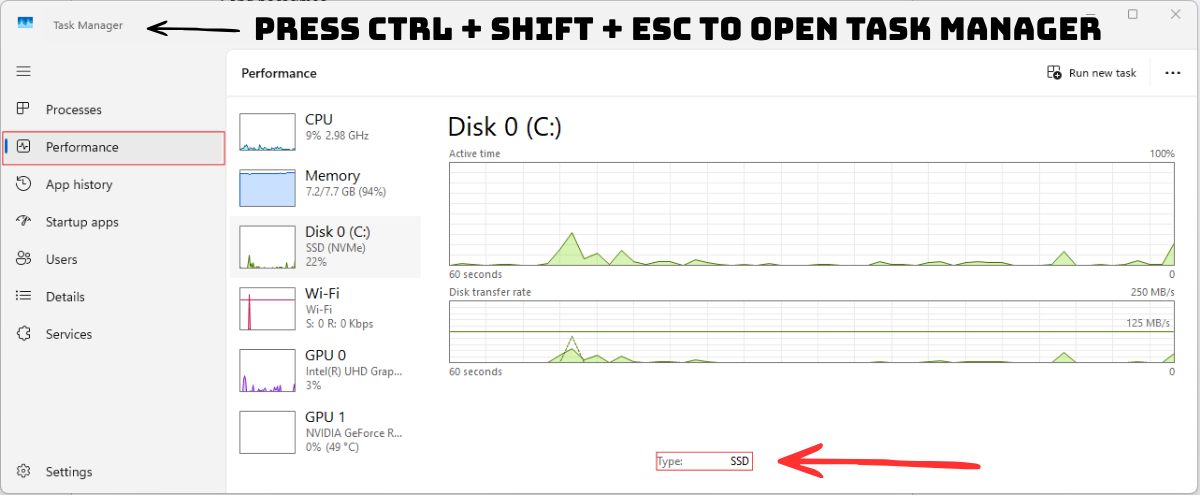
On Windows
Open Task Manager
Go to the Performance tab
Click Disk
Look for “HDD” or “SSD”
On Mac
Click Apple menu → About This Mac
Go to Storage
If you see HDD… yeah, we found your issue.
How to Upgrade to an SSD
Option 1: Replace Your Current Drive
Clone your existing data to the SSD
Swap drives physically
Option 2: Add SSD as Primary Drive
Install OS on SSD
Use HDD for storage
What You’ll Need
Compatible SSD (SATA or NVMe)
Cloning software (optional but helpful)
Basic screwdriver
Best Setup for Maximum Speed
Install operating system on SSD
Keep frequently used apps on SSD
Use HDD only for large files (videos, backups)
Maintain at least 20% free space
This setup balances speed and storage capacity.
Common Mistakes
Buying the wrong SSD type
Not cloning data properly
Filling SSD to max capacity (hurts performance)
Pro Tips
NVMe SSDs are faster than SATA SSDs
Enable TRIM (usually automatic)
Keep your SSD firmware updated
Conclusion
If your computer feels slow no matter what you try, upgrading from an HDD to an SSD is often the breakthrough solution. It’s one of the few upgrades that delivers immediate, noticeable results across everything you do—from booting up to opening apps.
You don’t need a brand-new computer. Sometimes, all it takes is replacing one outdated component to completely transform your experience.
Art Credit:
@benbenstd @aryo-hadis-images @naomiartsia @sketchify @nurmiftah @madanipro @naomiartsia @maria426025935