Fix Slow PC Startup: Disable Startup Programs Fast
Introduction
You press the power button, grab a drink, come back… and your computer is still waking up. Sound familiar? Slow startup times are one of the most frustrating everyday tech problems, and in many cases, the culprit isn’t your hardware—it’s your startup programs.
When your computer boots up, dozens of apps may quietly launch in the background, competing for resources before you’ve even opened a browser. The result? Sluggish performance right from the start of your day.
The good news is this is one of the easiest problems to fix. In this guide, you’ll learn exactly what startup programs are, how they slow your system down, and how to take control of them. By the end, you’ll be able to significantly speed up your boot time and improve overall performance—without spending a dollar.
What Are Startup Programs and Why They Matter
Startup programs are applications that automatically launch when your computer turns on. Some are essential—like antivirus software—but many are not.
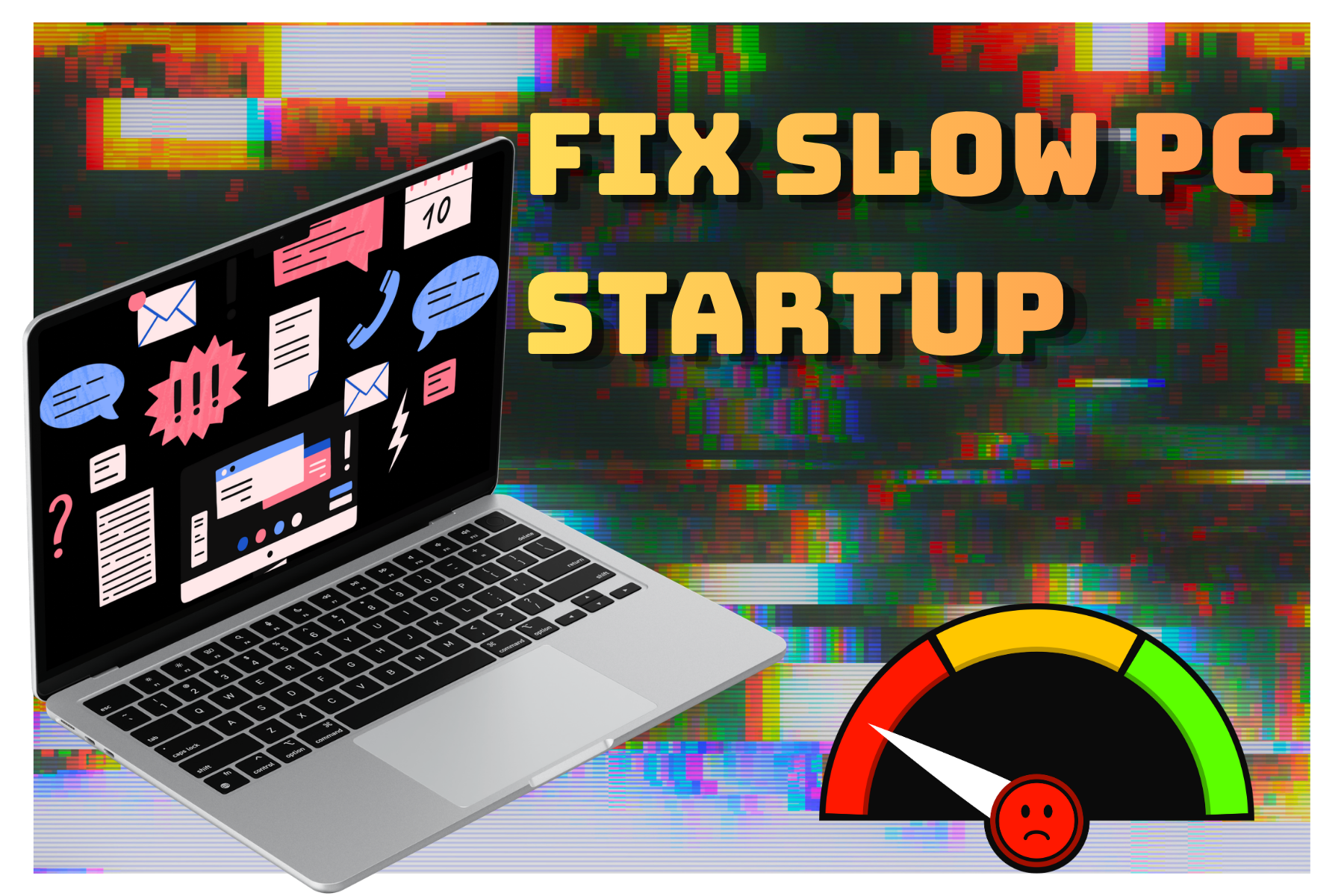
Apps like Discord, Spotify, Zoom, and even printer utilities often sneak into startup without asking. Individually, they may seem harmless. Together, they create a traffic jam for your CPU and RAM before you even log in properly.
This leads to:
Slower boot times
Reduced available memory
Laggy performance early in your session
Think of it like trying to start your day with 20 people talking to you at once—it’s chaos.
Signs You Have Too Many Startup Apps
Not sure if this is your issue? Here are some clear indicators:
Your computer takes more than 1–2 minutes to become usable
Apps open slowly after login
Your system feels laggy for the first 10–15 minutes
You hear fans spinning hard immediately after startup
If you’re experiencing even two of these, startup clutter is likely part of the problem.
Step-by-Step: How to Disable Startup Programs
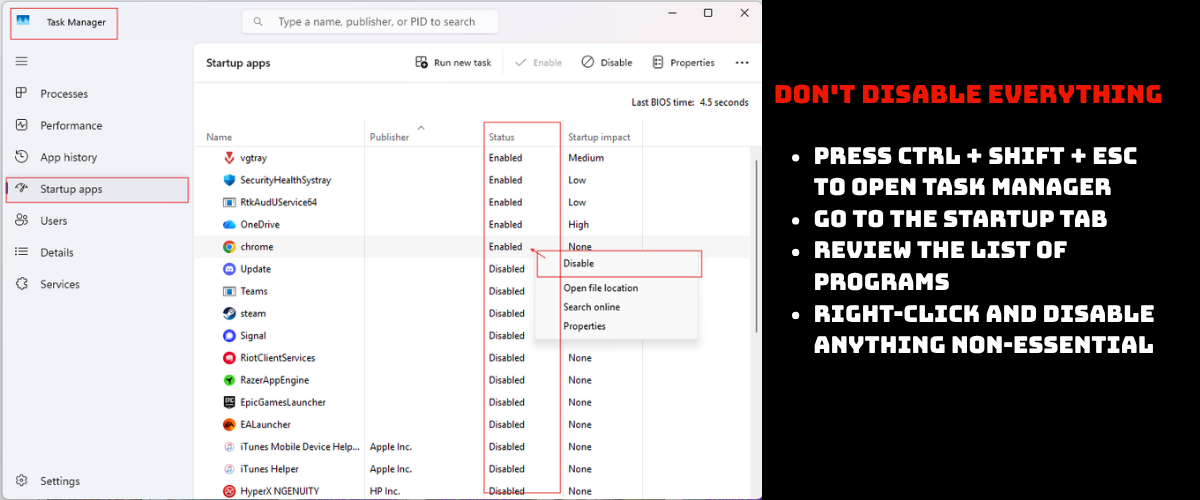
On Windows
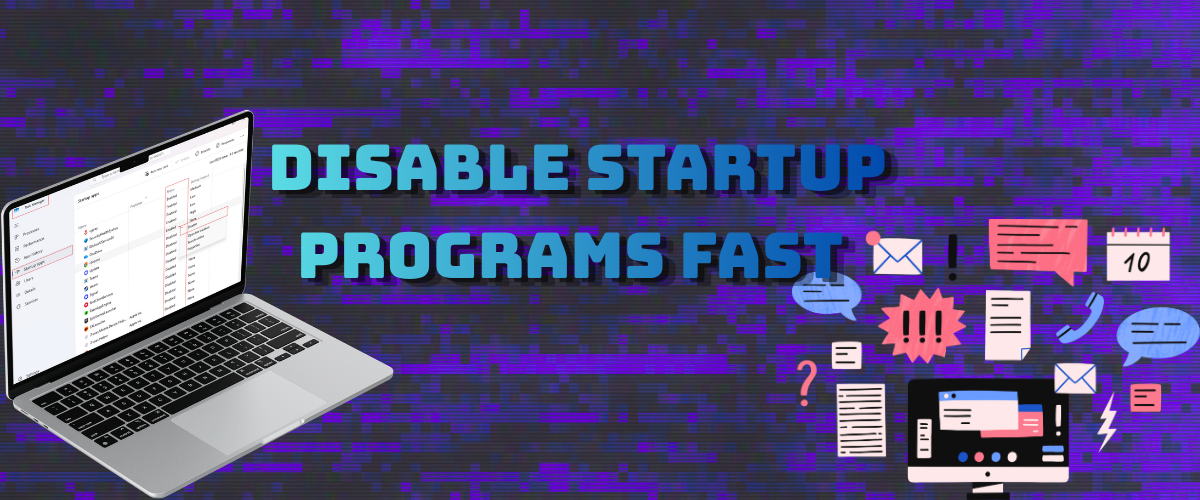
Press Ctrl + Shift + Esc to open Task Manager
Go to the Startup tab
Review the list of programs
Right-click and Disable anything non-essential
On Mac
Open System Settings
Go to General > Login Items
Remove unnecessary apps
What to Keep Enabled
Antivirus software
System-related tools
Drivers (audio, graphics utilities if needed)
Everything else? Probably safe to disable.
Common Mistakes to Avoid
Disabling everything blindly – Some apps are important
Confusing background apps with startup apps
Reinstalling apps that re-enable themselves
Take a minute to understand what each app does before turning it off.
Pro Tips for Faster Boot Times
Aim for fewer than 5 startup apps
Uninstall apps you never use
Restart your PC after making changes
Check startup settings monthly
Small adjustments here can make a massive difference over time.
Best Setup for Optimal Performance
An ideal startup setup includes:
Only essential security tools
No auto-launching media or chat apps
Lightweight system utilities
This keeps your system lean and responsive from the moment it boots.
Conclusion
Startup programs are one of the most overlooked causes of a slow computer—but also one of the easiest to fix. By taking a few minutes to clean up your startup list, you can dramatically reduce boot times and improve overall system responsiveness.
You don’t need new hardware or advanced technical skills—just a bit of awareness and regular maintenance. Keep your startup environment clean, and your computer will thank you every time you turn it on.
Art Credit:
@gettyimagespro @little-edu-arts @goodstudio