How Much RAM Do You Need for Smooth Performance?
Introduction
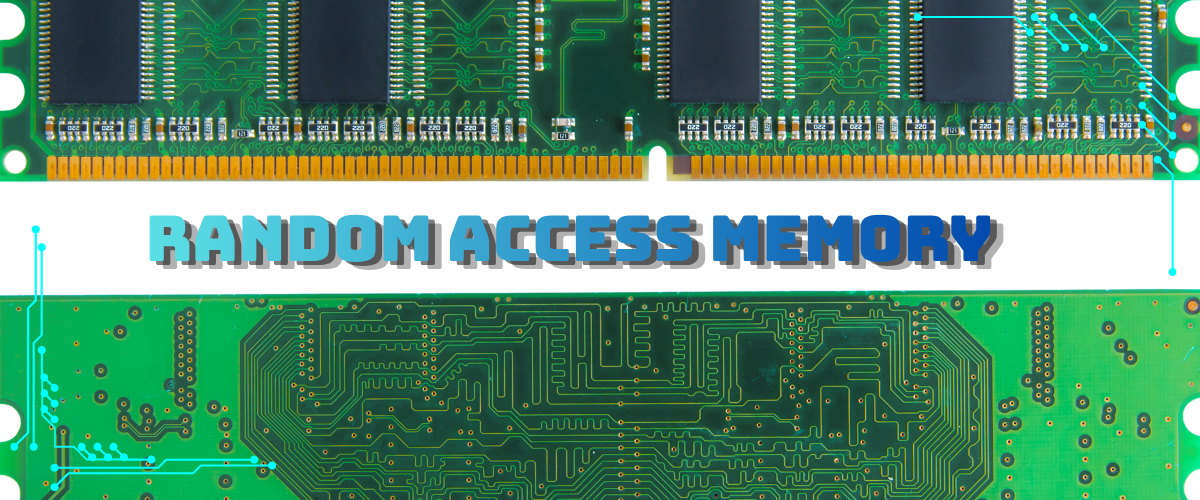
If your computer slows to a crawl when you open a few tabs or switch between apps, there’s a good chance your RAM is the bottleneck. RAM (Random Access Memory) is what allows your system to juggle multiple tasks at once—and when it runs out, everything suffers.
Many people assume their computer is just “getting old,” but in reality, insufficient RAM is one of the most common and fixable causes of poor performance.
In this guide, you’ll learn what RAM actually does, how to tell if you don’t have enough, and what you can do about it. Whether you’re a student, gamer, or casual user, understanding RAM will help you unlock smoother, faster performance.
What RAM Actually Does
RAM is your computer’s short-term memory. It temporarily stores data that your system is actively using.
The more RAM you have, the more tasks your computer can handle at once without slowing down.
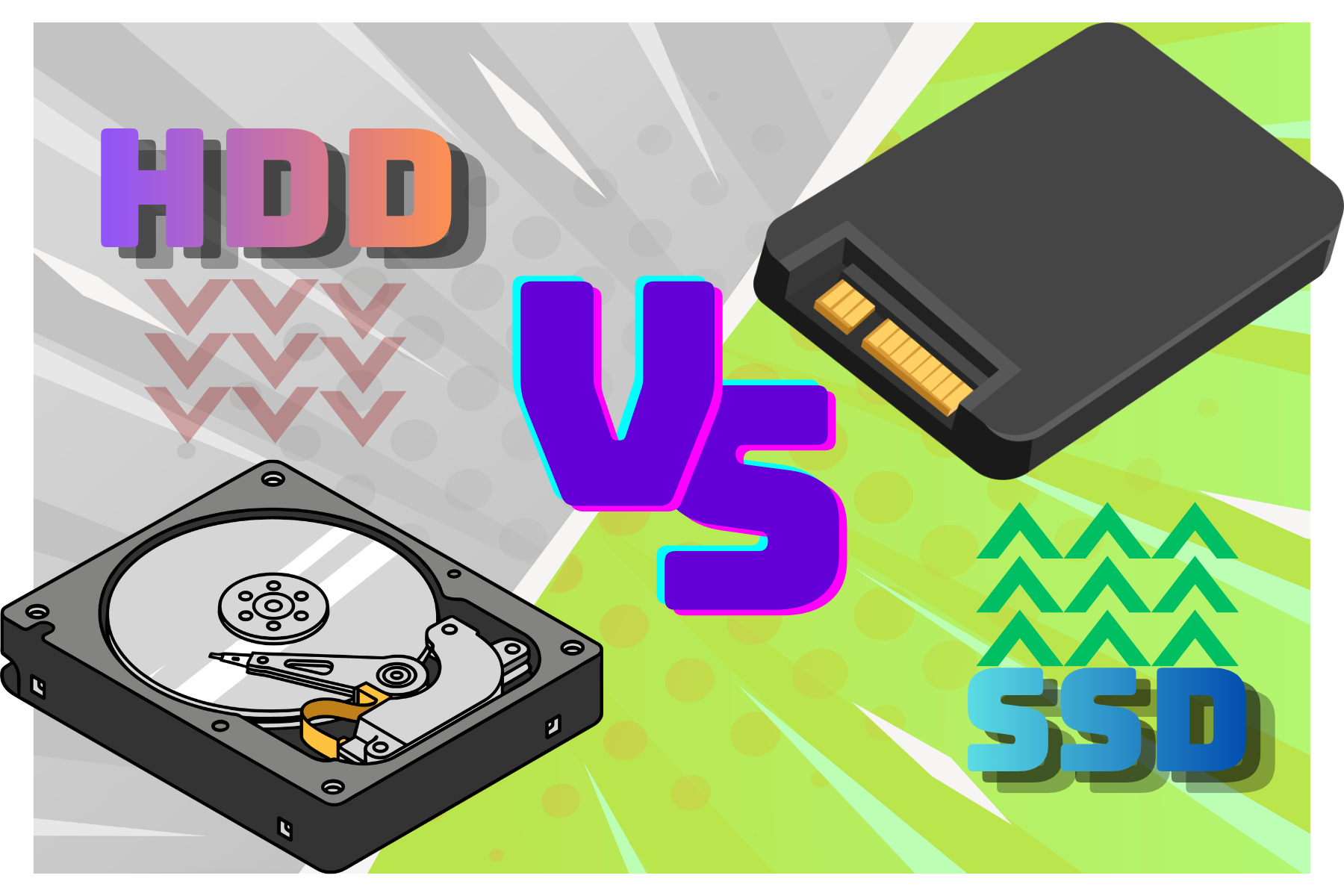
When RAM fills up, your system starts using your storage drive as backup memory—which is dramatically slower.
Signs You Don’t Have Enough RAM
Slow switching between apps
Browser tabs constantly reloading
Freezing during multitasking
Lag during video calls or editing
These are classic symptoms of memory overload.
How Much RAM Do You Actually Need?
Basic Use (Browsing, Docs)
8 GB is the minimum
Moderate Use (Multitasking, Streaming)
16 GB recommended
Heavy Use (Gaming, Editing)
16–32 GB ideal
If you’re still using 4 GB in 2026… yeah, that’s an issue.
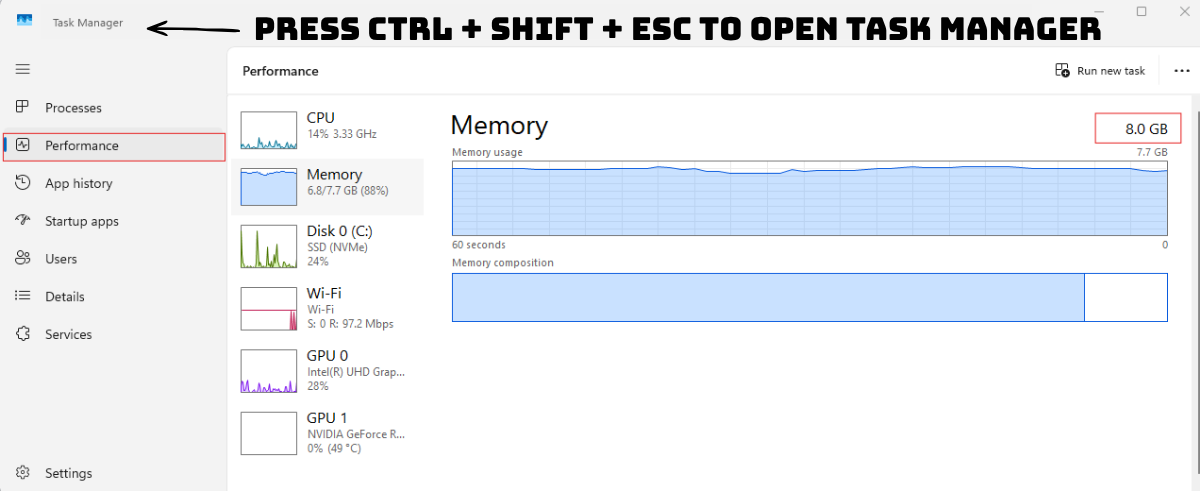
Step-by-Step: How to Check Your RAM
Windows
Open Task Manager → Performance tab
Mac
Open Activity Monitor → Memory tab
Look for high usage percentages (80%+ regularly is a red flag).
Upgrade vs Optimization
If upgrading isn’t an option:
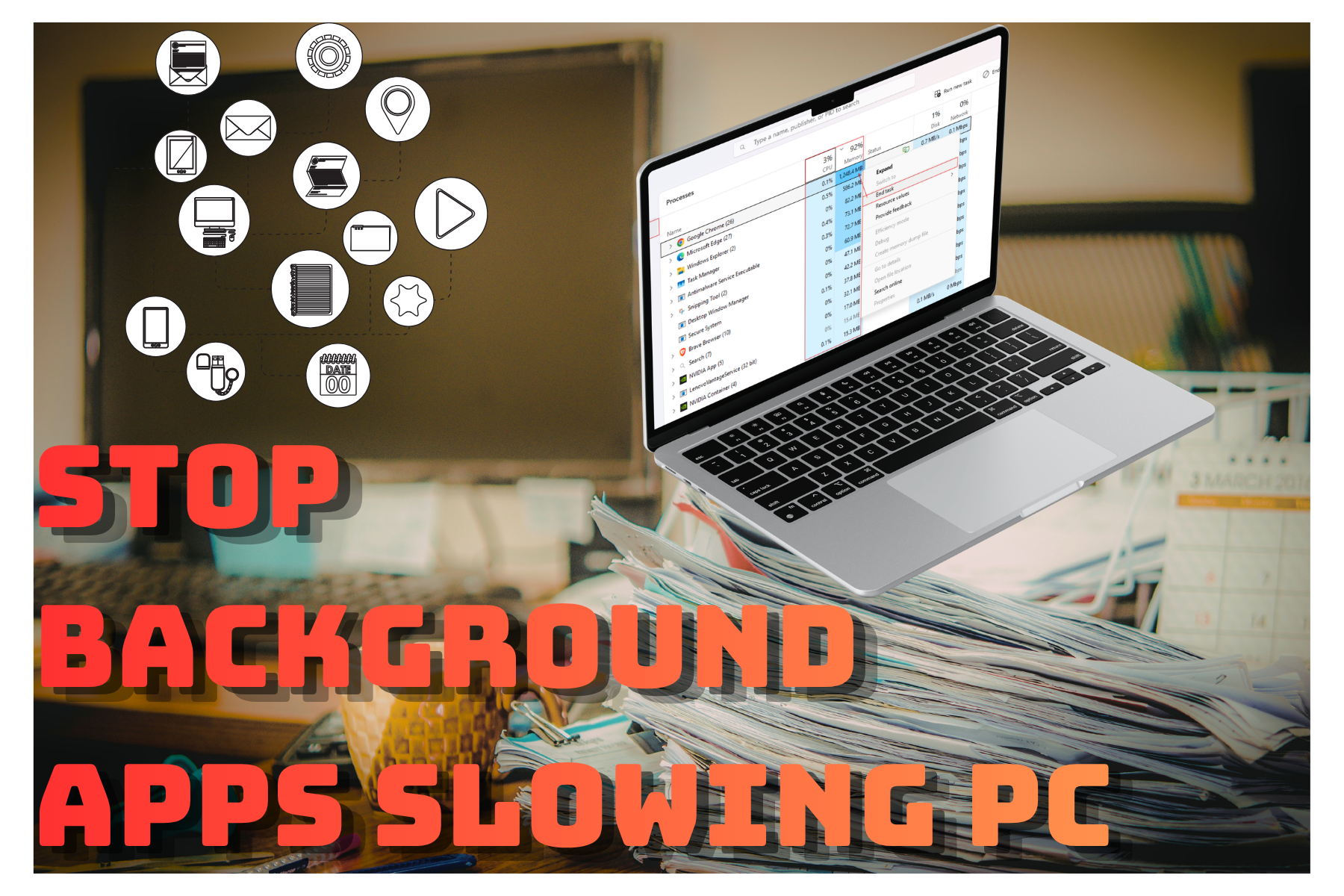
Close unused apps
Reduce browser tabs
Disable heavy extensions
If you can upgrade, RAM is one of the best value improvements you can make
Common Mistakes
Thinking CPU is the issue when it’s RAM
Leaving dozens of tabs open
Running heavy apps unnecessarily
Pro Tips
Use lightweight browsers if needed
Restart your computer regularly
Monitor memory usage during tasks
Conclusion
RAM plays a massive role in how smooth your computer feels. If you’re constantly dealing with lag or freezing, there’s a strong chance your system simply doesn’t have enough memory to keep up with your workload.
The fix can be as simple as closing apps—or as impactful as upgrading your RAM. Either way, understanding how memory works gives you control over your system’s performance.
Art Credit:
@nikastock @vvadyab @pexels @azza-studios @achira22-images @maria426025935