How to Find and Stop Background Apps Slowing PC

Introduction
Your computer might look idle—but under the hood, it could be running dozens of processes you never asked for. These background apps quietly consume CPU and RAM, gradually slowing everything down.
The tricky part? You often don’t see them. No open windows, no obvious signs—just a sluggish system that feels “off.”
Learning how to identify and manage background processes is a key skill for maintaining performance. In this guide, you’ll discover how to spot resource-hogging apps, safely shut them down, and prevent them from coming back. Once you get the hang of it, you’ll have far more control over your system’s speed.
What Are Background Processes?
Background processes are programs running without direct interaction. These include:
Update services
Cloud sync tools
Messaging apps
System utilities
Some are necessary. Others? Not so much.
Signs Background Apps Are Slowing You Down
High CPU usage when idle
Fans running constantly
Lag without obvious cause
Battery draining quickly (on laptops)
These are classic signs your system is doing too much behind the scenes.
Step-by-Step: How to Check Background Processes
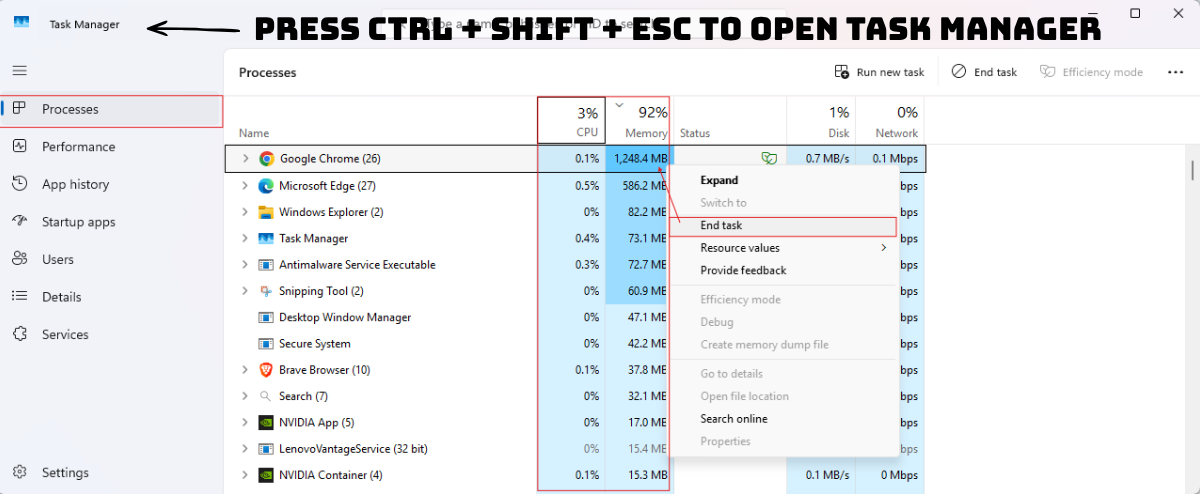
Windows
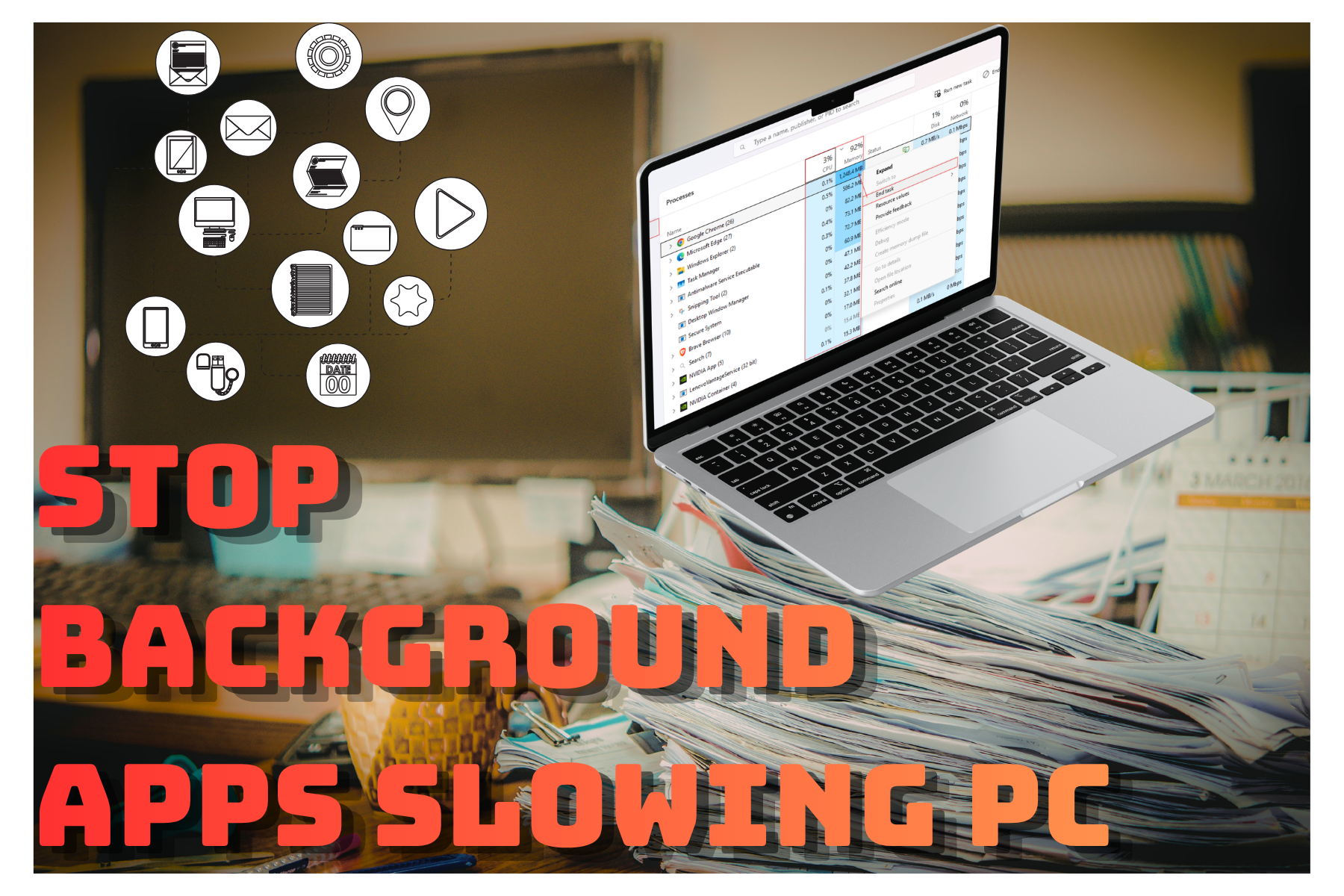
Open Task Manager
Go to Processes tab
Sort by CPU or Memory usage
Mac
Open Activity Monitor
Sort by resource usage
Look for apps using high resources unnecessarily.
How to Safely Close Unnecessary Apps
Right-click → End Task (Windows)
Select → Quit Process (Mac)
⚠️ Avoid ending system-critical processes unless you know what they do.
Common Mistakes
Closing essential system services
Ignoring recurring high-usage apps
Letting apps auto-start again
Pro Tips
Disable unnecessary startup apps (ties into earlier fix)
Uninstall apps you don’t use
Use lightweight alternatives when possible
Best Practices for Long-Term Performance
Check Task Manager weekly
Keep system clean of unused apps
Monitor resource spikes
Consistency matters more than one-time fixes.
Conclusion
Background processes are like silent performance killers—they don’t announce themselves, but they can drain your system over time. By learning how to monitor and manage them, you gain direct control over your computer’s speed and efficiency.
A quick check every now and then can prevent long-term slowdowns and keep your system running smoothly.
Art Credit:
@grmarc @stoica-adrians-images @barsrsind @grmarc @madalina-todicas-images @azza-studios @maria426025935